How to switch from Google Drive to Proton Drive
Where are your files now?
Switch to Proton Drive
Tick each step when it's done. Nothing gets deleted: everything in where your files are now stays put until you remove it yourself.
Nothing is deleted while you move: your files stay with where your files are now until you remove them yourself.
Google Drive
Proton can't copy from Google by itself. You download everything with , then put it in Proton Drive.
- Sign up for Proton Drive
Good to know
Choose a strong password and save the Proton gives you. Your files are : without your password or recovery phrase, nobody can open them, not even Proton.
- one.google.com/storage
Good to know
Your computer also needs free space for the download: about twice the size, because you unpack it.
- takeout.google.com
What it looks like
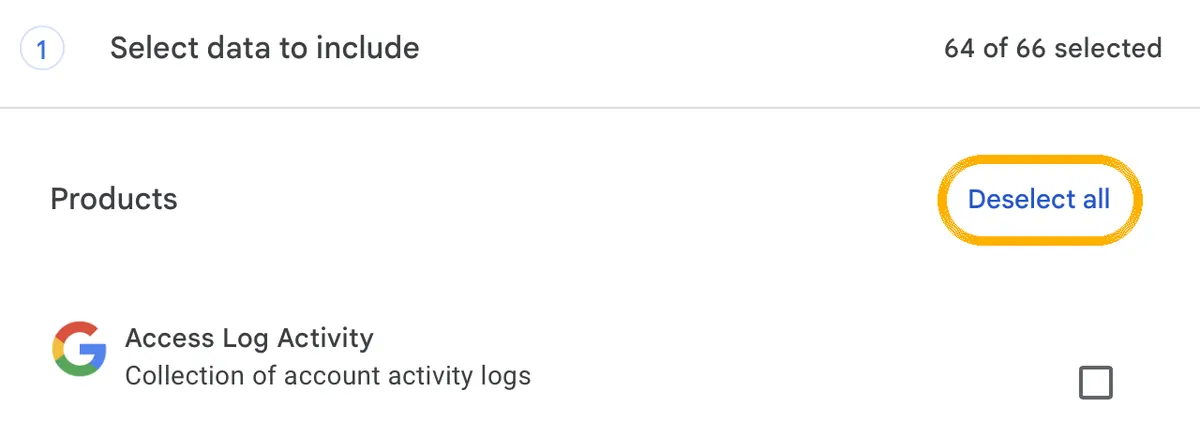
1. Click this first. Then nothing is ticked any more. 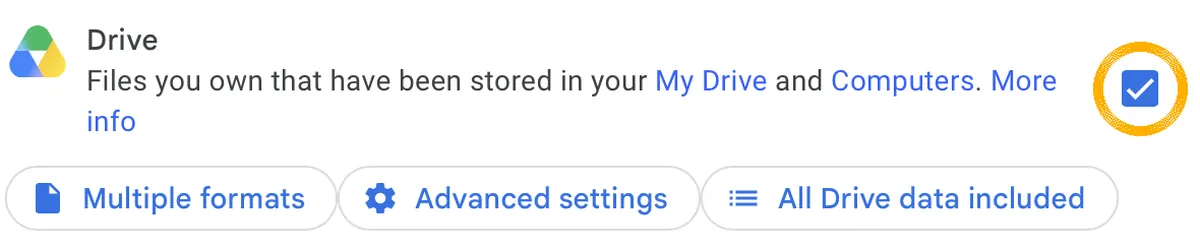
2. Scroll to Drive and tick only that. 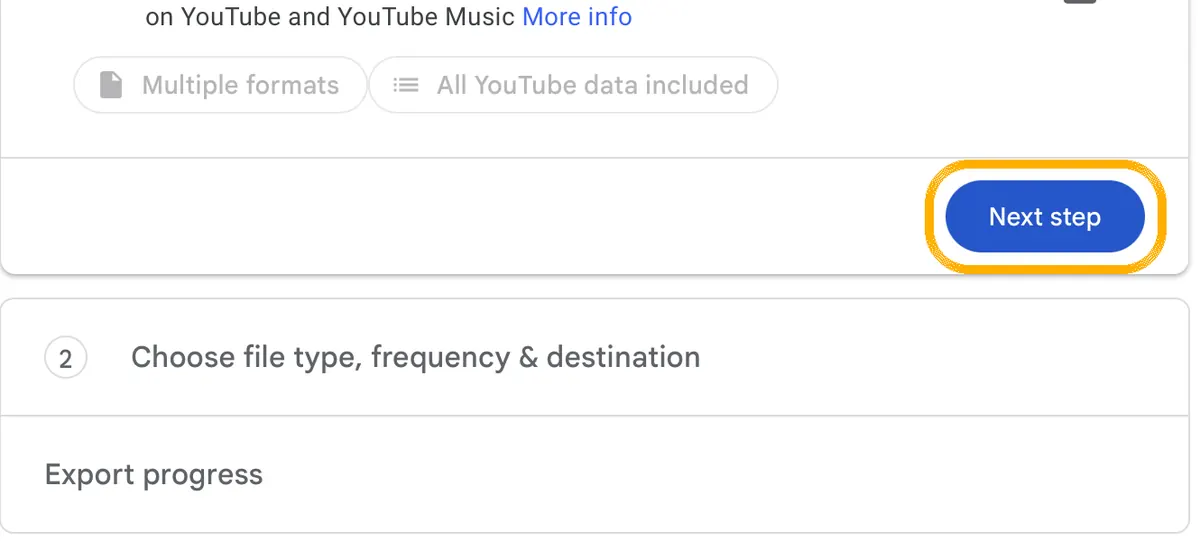
3. At the very bottom: Next step. 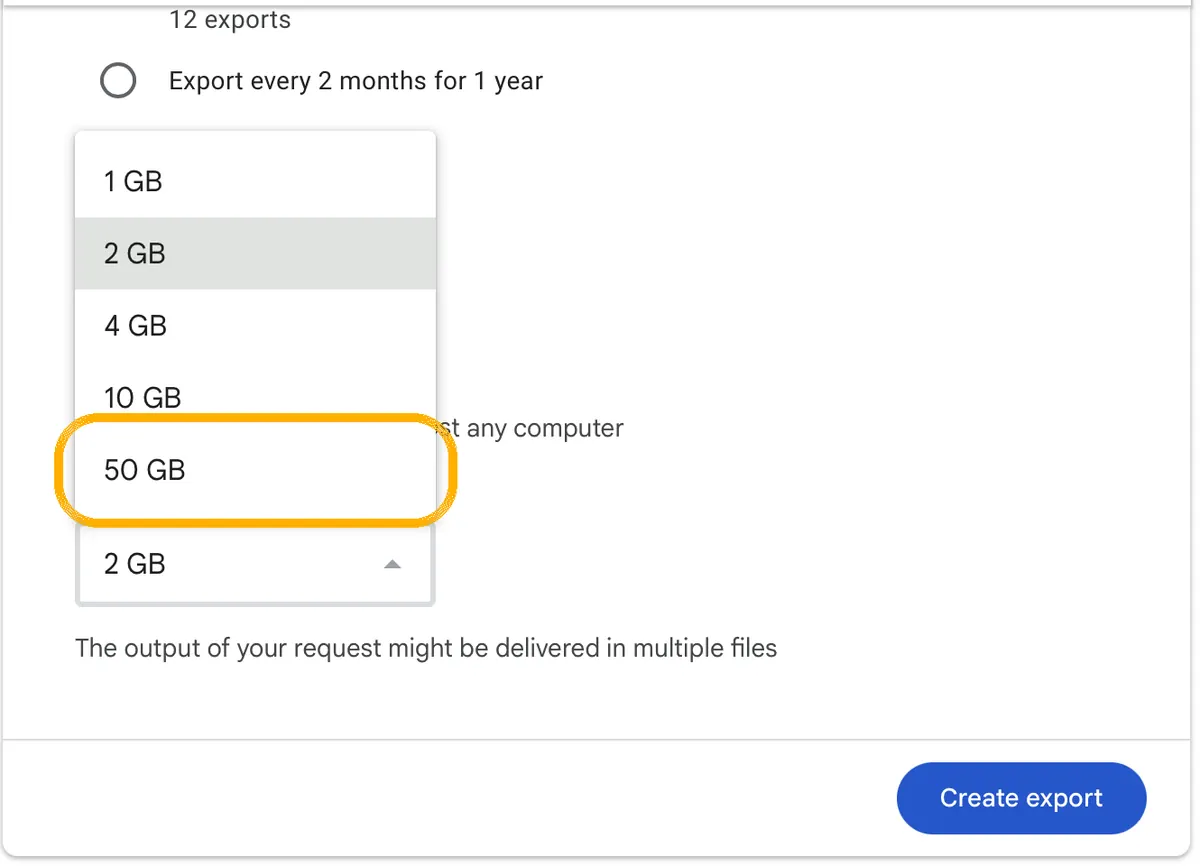
4. Choose 50 GB as the file size and click Create export. Good to know
Google Docs and Sheets arrive as Word and Excel files.
-
Good to know
The download link works for about a week, and each file can be downloaded 5 times. After that, you need to make a new export.
- drive.proton.me
Good to know
Large folders take a while to upload. Leave your computer on and connected.
iCloud Drive
You download your files from iCloud Drive and put them in Proton Drive.
- Sign up for Proton Drive
Good to know
Choose a strong password and save the Proton gives you. Your files are : without your password or recovery phrase, nobody can open them, not even Proton.
- icloud.com/iclouddrive
Good to know
How: files that are only in iCloud have an “In iCloud” icon. Control-click them and choose Download Now. Do you keep your Desktop and Documents in iCloud Drive (a Mac setting)? Then those folders are in iCloud Drive too: take them along.
- drive.proton.me
Good to know
Large folders take a while to upload. Leave your computer on and connected.
OneDrive
You download your files from OneDrive and put them in Proton Drive.
- Sign up for Proton Drive
Good to know
Choose a strong password and save the Proton gives you. Your files are : without your password or recovery phrase, nobody can open them, not even Proton.
- onedrive.live.com
Good to know
You can leave out the folder with your phone's photos (usually Pictures › Camera Roll): you move those in the part “Photos in ”. One download can hold up to 10,000 files, so do a big OneDrive in parts. Have the OneDrive app on Windows? Your files are also in File Explorer under OneDrive. Right-click the folder and choose “Always keep on this device” first, so they're really on your computer.
- drive.proton.me
Good to know
Large folders take a while to upload. Leave your computer on and connected.
Dropbox
You download your files from Dropbox and put them in Proton Drive.
- Sign up for Proton Drive
Good to know
Choose a strong password and save the Proton gives you. Your files are : without your password or recovery phrase, nobody can open them, not even Proton.
- dropbox.com
Good to know
You can leave out the folder with your phone's photos (usually Camera Uploads): you move those in the part “Photos in ”. A folder download must be under 250 GB and under 10,000 files. Bigger than that? Use the Dropbox app on your computer: your files are then already in your Dropbox folder.
- drive.proton.me
Good to know
Large folders take a while to upload. Leave your computer on and connected.
All done? Then tap I've switched ✓.
Rather use kDrive by Infomaniak or pCloud?
Nice, that's one! Your files are with Proton Drive now.
Keep your old one around for a while. There's no rush to close it.
And where your files are now? What to do with it, when you're ready
You don't have to delete anything at where your files are now right away. Leave your files there for a while, until you've checked that everything is in Proton Drive: open a few folders and documents. Paying for extra space? Once your files have moved, a smaller plan is often enough: see below how to save money.
Deleting your files from Google Drive, when you're ready
- Check that everything is in your new storage
Open a few folders and documents in your new storage before you delete anything.
- Remove Google Drive for desktop
If you have it, uninstall it like any other app: on a Mac drag it to the Trash, on Windows go to Settings › Apps.
- Move your files to the trash
Go to drive.google.com, select your files, right-click and choose “Move to trash”.
Good to know
People you shared files with lose access once you delete them for good. Send them the new file first, if they need it.
- Empty the trash
Click Trash on the left, then “Empty trash” and “Delete forever”.
Good to know
Otherwise Google deletes them after 30 days. Deleting forever can't be undone.
- Pay less for Google storage, or stop
Only if you pay Google for extra storage. Gmail, Drive and Photos share that space, so check how much you still use now that your files are out: one.google.com/storage shows it. Often a smaller plan is enough: go to google.com/settings/storage, click the price of the plan you want and click Subscribe. Is the free 15 GB enough? Then cancel: one.google.com › Settings › Cancel membership.
Good to know
A smaller plan starts at the next month of your plan. Keep some room to spare: if you use more than your plan, Gmail can't send or receive email. Paid through the App Store on iPhone? Change it there.
Deleting your files from iCloud Drive, when you're ready
- Check that everything is in your new storage
Open a few folders and documents. Also keep the folders you downloaded on your computer (or an external drive) for now, as an extra copy.
- Delete your iCloud Drive files
Go to icloud.com/iclouddrive, select your files and click Delete.
Good to know
Careful: this also deletes them from your Mac, iPhone and iPad if they use iCloud Drive. Do you keep your Desktop and Documents in iCloud Drive? Then this also empties the desktop and Documents folder on your Mac. You can get files back from Recently Deleted for 30 days.
- Pay less for iCloud+, or stop
Check how much iCloud space you still use now that your files are out: on your iPhone, go to Settings › your name › iCloud and open your storage (Manage Storage). iPhone backups, Mail and Messages use iCloud too. Then tap Change Storage Plan: it shows how much you use, and you can pick a smaller plan that fits. Is the free 5 GB enough? Then go to Settings › your name › Subscriptions › iCloud+ and choose Cancel Subscription.
Settingsyour nameiCloudManage StorageChange Storage Plan
Good to know
The new plan starts when the period you paid for ends. Keep some room to spare: if you use more than your plan, iCloud stops syncing and iPhone backups stop. On a Mac: System Settings › Apple Account › iCloud › Manage Plan. With the free plan you also lose Hide My Email and Private Relay.
Stopping OneDrive, when you're ready
- Stop folder on Windows
If OneDrive backs up your Desktop and Documents: click the OneDrive cloud icon at the bottom right, then Settings › and backup › Manage backup, and switch off each folder. Choose to keep the files on your PC.
OneDrive iconSettingsSync and backupManage backup
Good to know
If Windows says some files couldn't be moved, right-click the folder and choose “Always keep on this device” first, then try again.
- Unlink OneDrive from your computer
Windows: OneDrive icon › Settings › Account › Unlink this PC › Unlink account. Mac: OneDrive icon in the menu bar › Preferences › Account › Unlink this Mac.
Good to know
You don't lose files: they stay on onedrive.live.com until you delete them there. OneDrive is part of some versions of Windows and can't be removed, only switched off like this.
- Delete your files from OneDrive
Go to onedrive.live.com, select your files and delete them. Then empty the Recycle bin.
Good to know
Moving your phone's photos too? Do that first, in the part “Photos in the cloud”.
- Pay less for Microsoft 365, or stop
Only if you pay Microsoft for the storage. Check how much OneDrive space you still use now that your files are out: onedrive.live.com shows it at the bottom left. Need only a little? Microsoft 365 Basic gives you 100 GB for €2 a month. Enough with the free 5 GB? Then cancel at account.microsoft.com/services/microsoft365.
Good to know
Microsoft 365 Basic and the free plan don't include Word and Excel on your computer. If you keep more than your plan for 6 months, Microsoft may delete your OneDrive.
Stopping Dropbox, when you're ready
- Delete your files from Dropbox
Go to dropbox.com, select your files and delete them.
Good to know
Moving your phone's photos too? Do that first, in the part “Photos in the cloud”.
- Stop paying for Dropbox, if you can
Check how much Dropbox space you still use now that your files are out. Does it fit in the free 2 GB? Then on dropbox.com, click your profile picture at the bottom left, then Manage account › Cancel plan.
Profile pictureManage accountCancel plan
Good to know
If you keep more than the free plan, Dropbox stops syncing and may delete files. Paid in the App Store or Google Play? Cancel it there.
Is it a risk to leave my photos and files at Google or Apple?
They stay as safe as they were, but they're not private. At Apple, iCloud Photos and iCloud Drive are only if you turn on Advanced Data Protection; otherwise Apple holds the keys. Google offers encryption with your own keys only for business accounts, so for a normal Google account, Google holds the keys.
If I delete my files, are they really gone?
Google and Apple keep deleted photos and files in a trash or Recently Deleted folder for 30 days, then delete them. Downloading with makes a copy only: it doesn't delete anything.
Can I stop paying and just leave everything there?
Only if it fits in the free space: 15 GB at Google (shared with Gmail), 5 GB at Apple and Microsoft, 2 GB at Dropbox. Above that, Gmail can't send or receive email and syncing stops. Microsoft may delete your OneDrive after 6 months over the limit.
Editing documents
Instead of Microsoft Office, Google Docs & Sheets or Apple Pages & NumbersKeep your progress?
Just your email. No password: I send you a code.
Check your email
I sent a 6-digit code to . It works for 10 minutes. Not in your inbox? Check your spam folder.
✓ Saved
You're logged in as . Your progress is saved and you can continue on any device. Your account
I only store your email and your progress. Privacy
·
What is Proton Drive? Who's behind it, privacy and cost →
Checked against the official help pages on 4 October 2026. Sources
Sources
- Proton Drive: pricing
- Proton: unlock more free storage
- Proton Drive: download apps
- Proton: import from Google Photos
- Proton blog: Google Photos import on Windows (Sept 2025)
- Proton: import files from Google Drive
- Proton: import files from iCloud
- Proton: enable photo backup
- Google: download your data (Takeout)
- Google Photos: turn backup on or off
- Google Photos: delete photos (backup off first)
- Google Drive: delete files
- Google One: cancel membership
- Apple: download iCloud photos and videos
- Apple: work with files in iCloud Drive on Mac (Download Now)
- Apple: turn off Desktop & Documents Folders
- Metadata Fixer: what Google Takeout leaves out (shared albums)
- Apple: copy the information you store in iCloud
- Apple: request a copy of your data
- Apple: turn off iCloud Photos
- Apple: delete files on iCloud.com
- Apple: downgrade or cancel iCloud+
- Google One: change or cancel storage plans
- Microsoft 365: compare plans (Basic)
- Apple: iCloud data security overview
- Google Workspace: about client-side encryption
- Microsoft: download files from OneDrive
- Microsoft: OneDrive camera upload on iOS
- Microsoft: OneDrive camera backup on Android (Camera Roll folder)
- Dropbox: camera uploads go to the Camera Uploads folder
- Microsoft: OneDrive folder backup
- Microsoft: turn off or unlink OneDrive
- Microsoft: cancel Microsoft 365
- Dropbox: download files and folders
- Dropbox: camera uploads
- Dropbox: cancel a subscription
- Proton Drive iOS and Android source code: photo backup skips duplicates (same name and content)
- kDrive iOS source code: photo backup choices (new only, all, from date)
Google's own tool to download a copy of everything you have at Google, like mail, photos and files.
Scrambled so that only someone with the right key or password can read it.
A list of words or a code that lets you get back into your account if you forget your password. Write it on paper and keep it safe.
Save a copy of your things from an app into a file, so you can keep it or open it somewhere else.
Storage on the internet instead of on your own device, so you can reach your files from anywhere.
An extra copy of your data, so you don't lose it if something goes wrong.
Keeps the same bookmarks, passwords and settings on all your devices, like your computer and phone.
Scrambled on your own device, so only you (and the people you send it to) can read it. Not even the company can.